

Besides managing and posting to websites remotely CMS Commander can also autopost content via email. This feature can be used to post articles to lots of free blogging services which allow posting via email, including the very popular WordPress.com, Blogger.com and Tumblr.com services. This page explains how to use posting via email in CMS Commander.
Necessary on the Blogs you want to post to
For most services like wordpress.com and blogger.com you need to activate “Post Via Email” in the control panel of your blog there first and then get the Email address to send content to. This is the address you need to enter into CMS Commander later as well. You can find detailled video instructions on how to do this for many popular blogging services here: http://iautoblog.com/video.htm
How to Autoblog to Blogger and Other Free Blogging Services in CMS Commander
- Enable Post Via Email Autoblogging on the “Choose Sources” page in CMS Commander.
- After that go to the newly added “Post via Email” tab. Here you need to enter your email account information from which you want the content to be sent to your sites. Most free accounts like gmail.com work fine for that and again you can find detailed video instructions on which information you need to enter with videos here: http://iautoblog.com/video.htm
In the “List of Email Addresses / Blogs to Post to” you need to enter the email details of the websites you want to post to. This is the Email you received in the first step under “Necessary on the Blogs you want to post to”!, e.g. for autoblogging to a blogger weblog you would have to enter the related post via email address given to you by blogger.com. See above for detailed tutorials for many different free blogging services. You can enter any number of email addresses, with one per line, for autoblogging to any number of free blogs.
- Now you are ready to post via email on the “Bulk Content” page in CMS Commander. You will see a “Post via Email” list below your regular sitelist where you can select the sites you want to post to. On the “3. Post to Your Sites” tab you can now find the “Post Via Email” button. Once you press the button all content shown in the Content Preview (which you first need to create in the “1. Build Content” tab) below gets posted via email to the sites you have selected in your list.
Building an Autoblog on Blogger or WordPress.com
Once you finished all the steps above you can use your setup for autoblogging to Blogger, WordPress.com and many other similar platforms like Tumblr that allow remote posting via email. By modifying the templates of your content sources in CMS Commander (on the Options page) you can set up your blogger autoblogs to automatically link back to your main websites.
Screenshots of all Steps
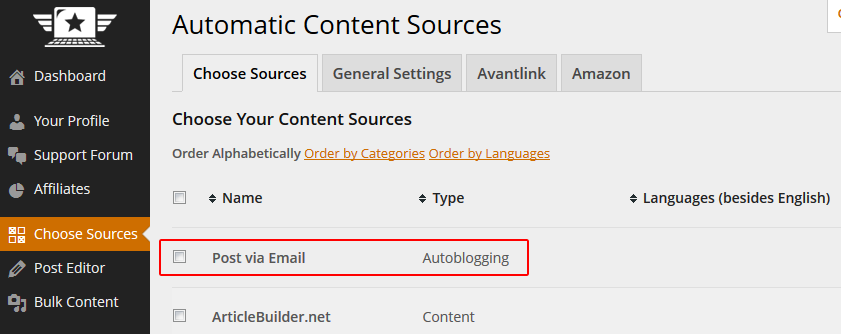
Step 1 – Enabling on the Choose Sources page
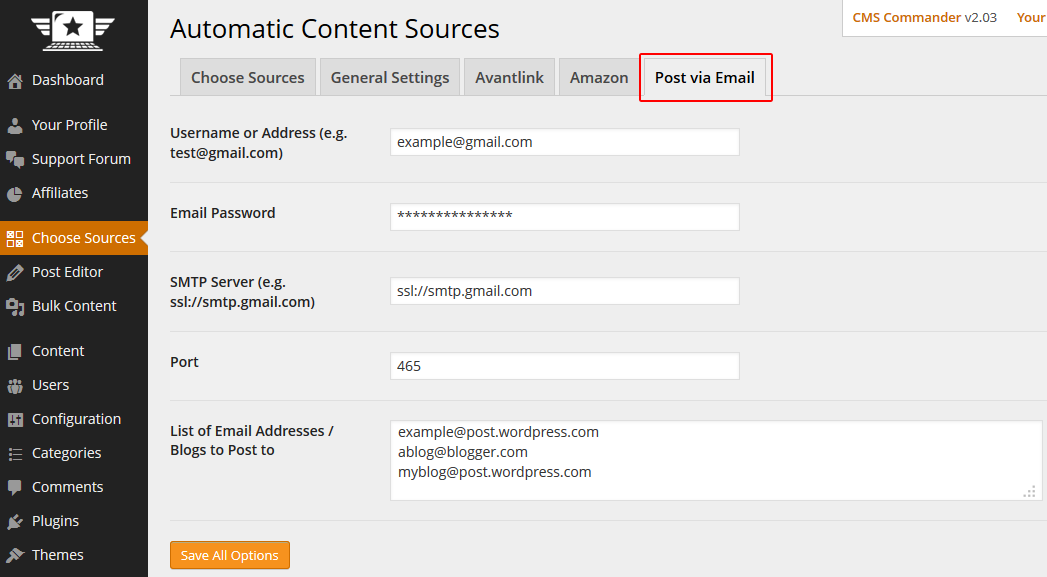
Step 2 – Enter your SMTP Email details and target autoblogs on the Options page
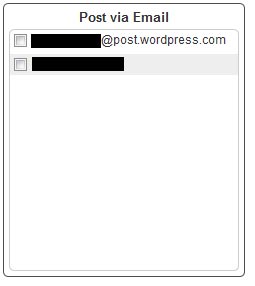
Step 3 – Done. Posting via Email is now available on the “Bulk Content” page.
Join Over 3,000 Other Commanders!
Sign up now to start managing all your blogs immediately.
Completely free for 30 days. No payment details required!